 MyMemo
Beginner's Guide: How to use Memocast Podcast?
Learn how to create your own MemoCast — automatically or manually — and start listening to your saved content like a podcast.
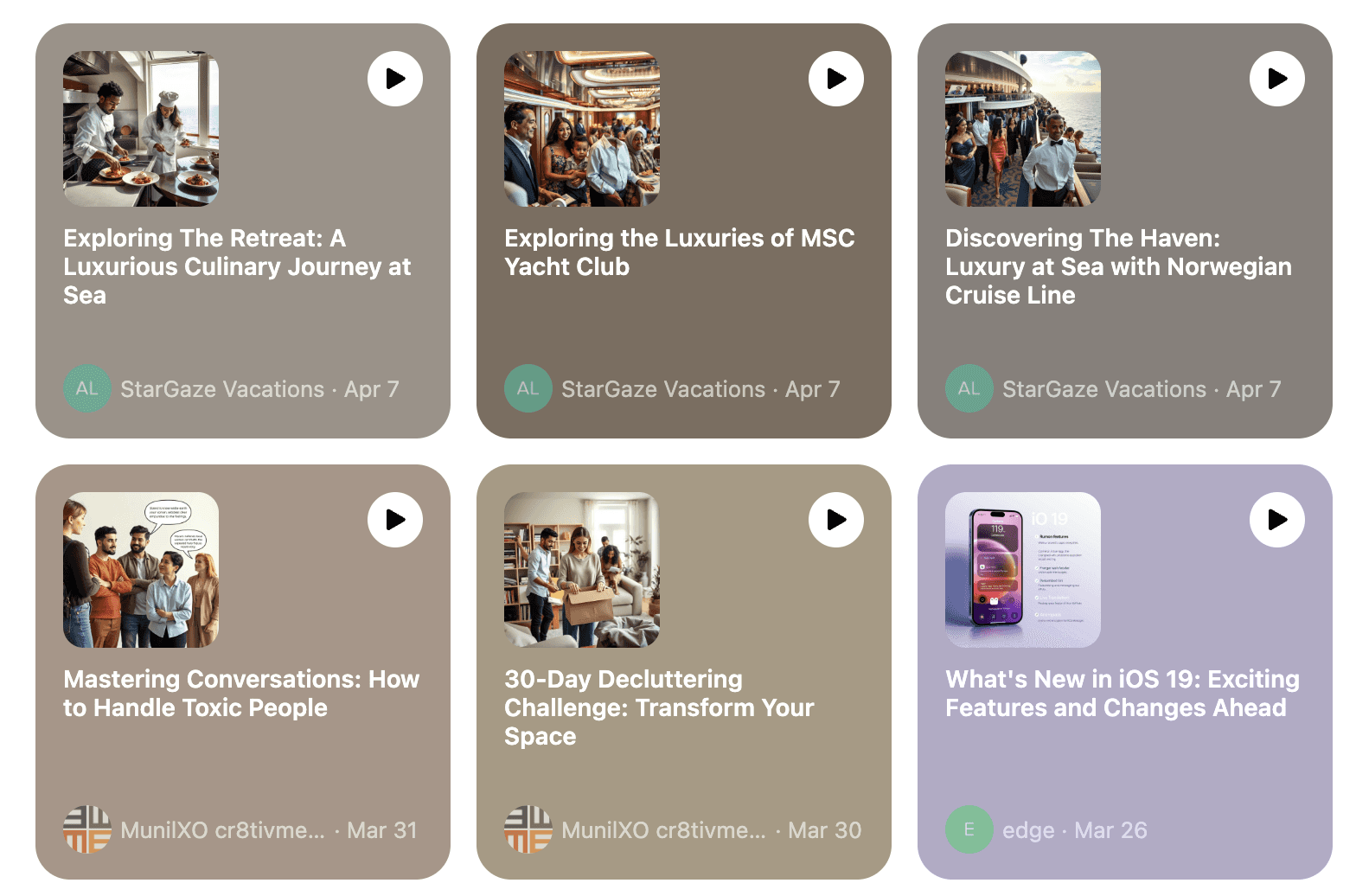
Do you also have this trouble: you collect a lot of good content every day, but you never have time to sit down and read it carefully?
Don’t worry, Memocast podcast function can help you “listen” to everything! 📚👂
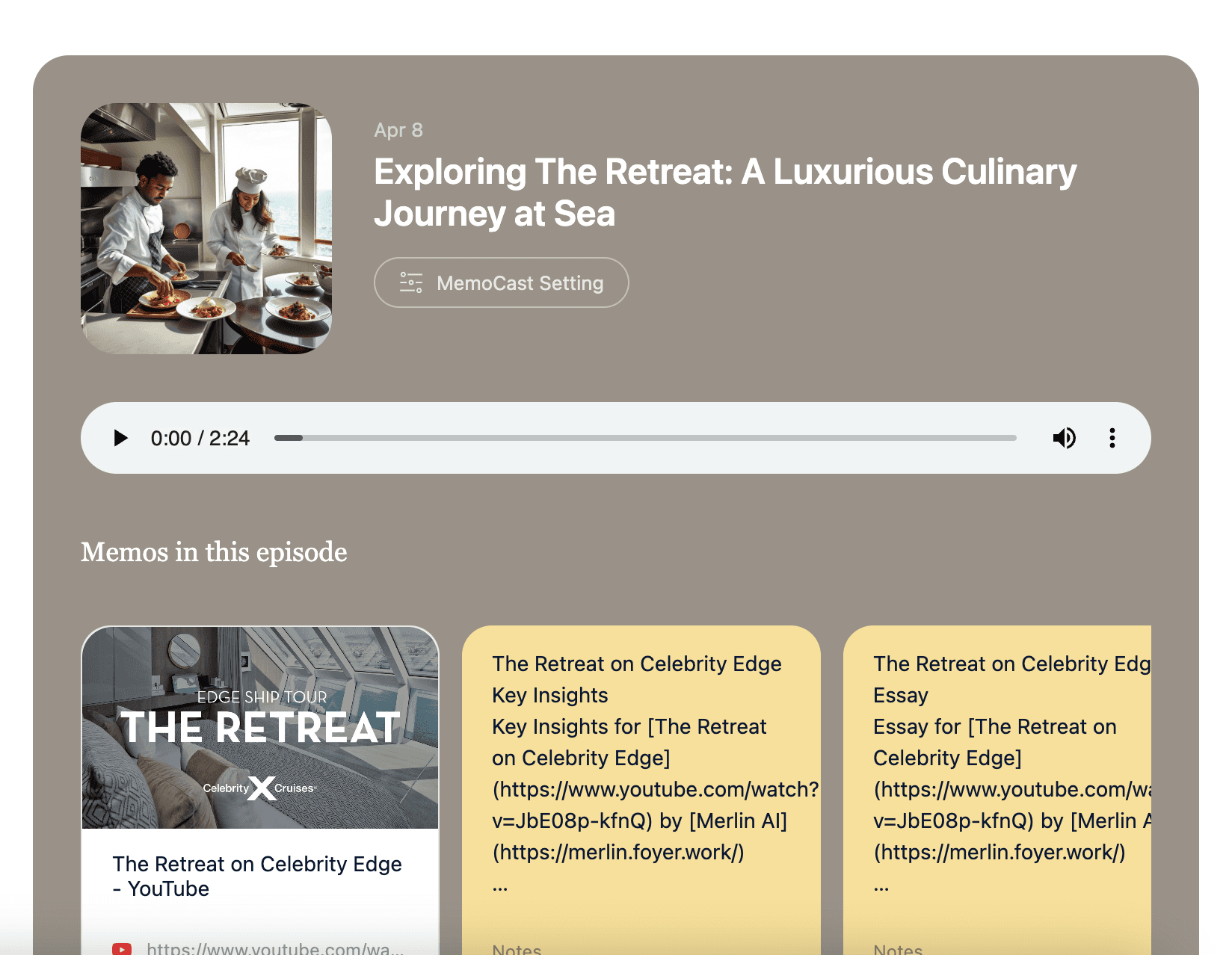
Whether you are commuting, exercising, or doing housework, as long as you put on headphones, you can easily master knowledge with your ears.
🌞 The first type: Daily MemoCast (Daily Podcast)
Every morning when you wake up, you will receive an AI podcast collection in your mailbox or App. The content comes from the Memo you uploaded or saved the day before. It automatically summarizes and converts it into a voice podcast to help you easily review the gains of the previous day.
🧠 Suitable for people:
- Students/learning users, who have a lot of study notes to review every day
- Office workers/researchers, who collect a lot of articles/web materials every day
- People who want to “review” the previous day with their ears!
✅ No operation required, the system automatically generates
🎙 Equipped with AI voice reading, just like listening to your own exclusive radio station!
🛠 Second: Manually generate MemoCast (custom podcast)
You can manually generate a podcast from any collection. Suitable for when you want to review a certain content in particular, or share a certain topic with friends/community!
🔧 The operation method is as follows:
- Find the Memo you want to generate
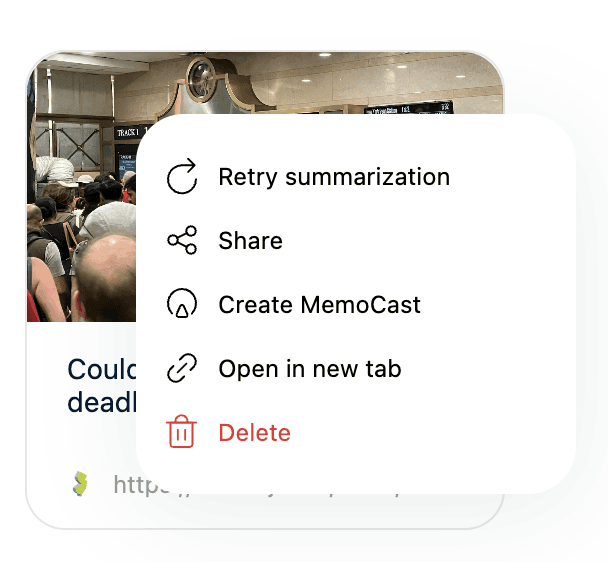
- Right-click (or long press on the phone) Memo card
- Select “Create MemoCast”
The following settings interface will pop up 👇
Here you can set:
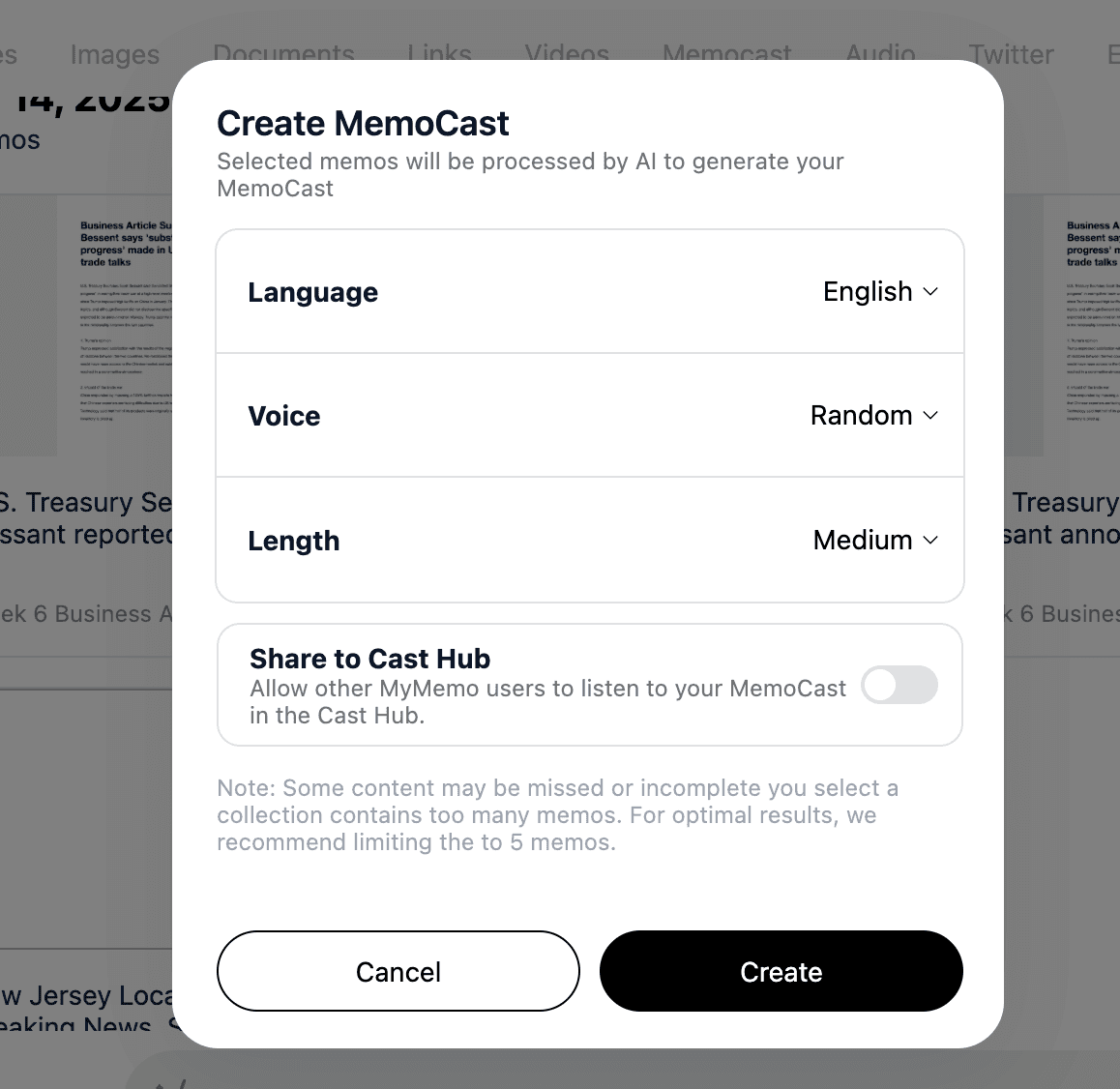
- Language: Supports multi-language broadcasting, such as Chinese, English, etc.
- Voice: You can choose different AI voices, and even switch randomly
- Length: Short/Medium/Long, you can control the podcast playback time
- Share to Cast Hub (whether to share publicly): After turning it on, your podcast can be listened to by others in Cast Hub 💫
📂 You can also play the whole “clip”!
If you want to generate multiple Memo collection podcasts in a folder at once, that’s totally possible!
But here’s a little reminder ❗
It is recommended that there should be no more than 5 Memos in a folder, otherwise AI may miss some content when summarizing.
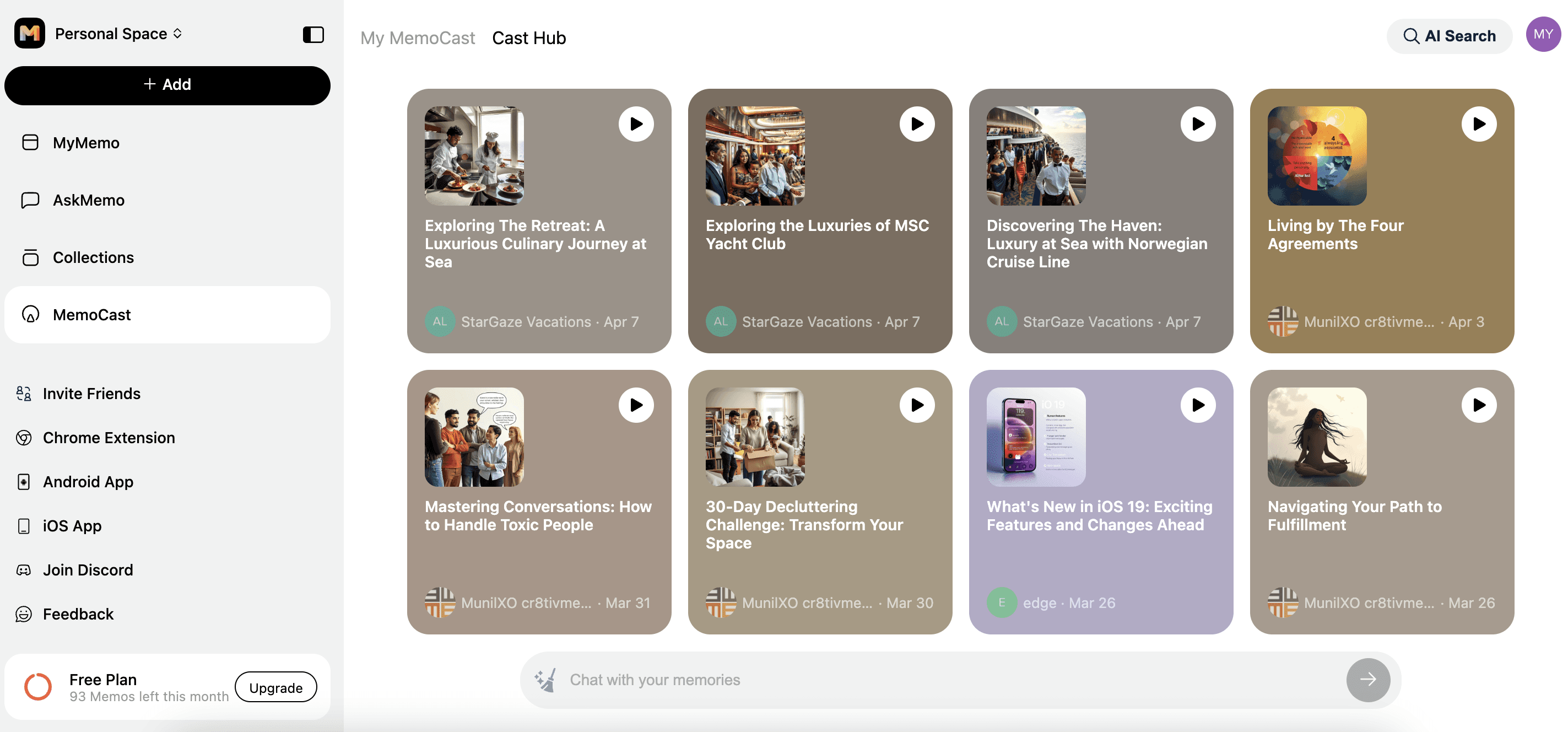
🌐 Share Your MemoCast — and Join the Cast Hub!
Want to let others hear your MemoCast? It’s easy!
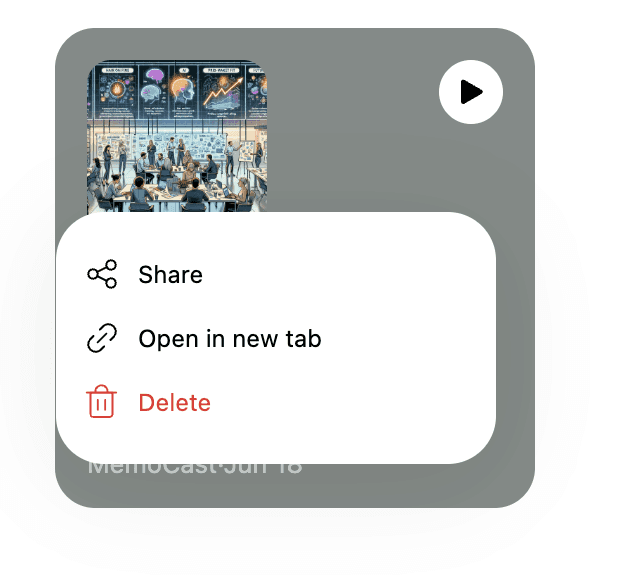
Just right-click (or long-press on mobile) any MemoCast card and tap “Share” to get a unique link. You can send it to friends, post it in your group chat, or embed it in your newsletter.
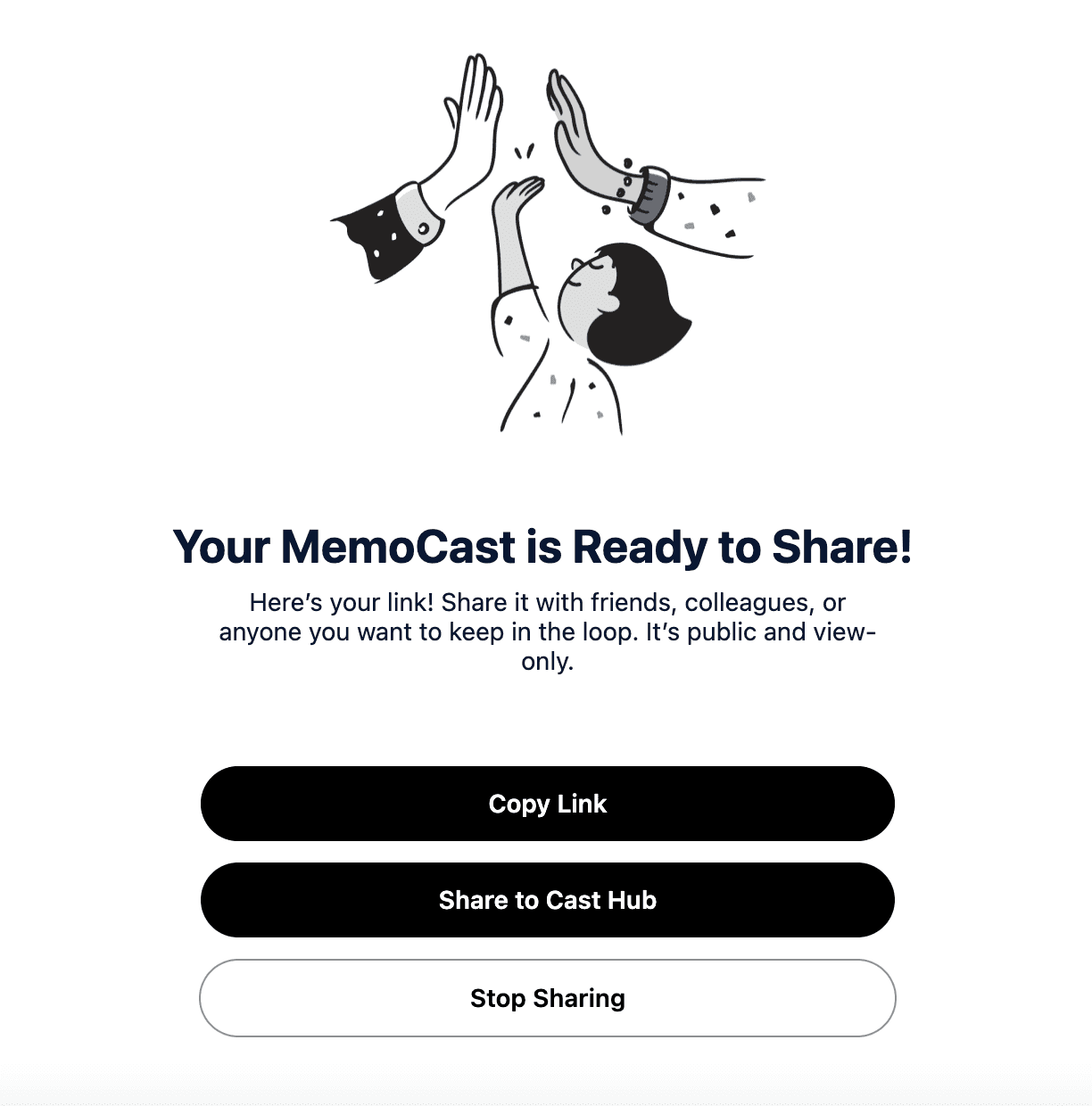
But here’s the fun part:
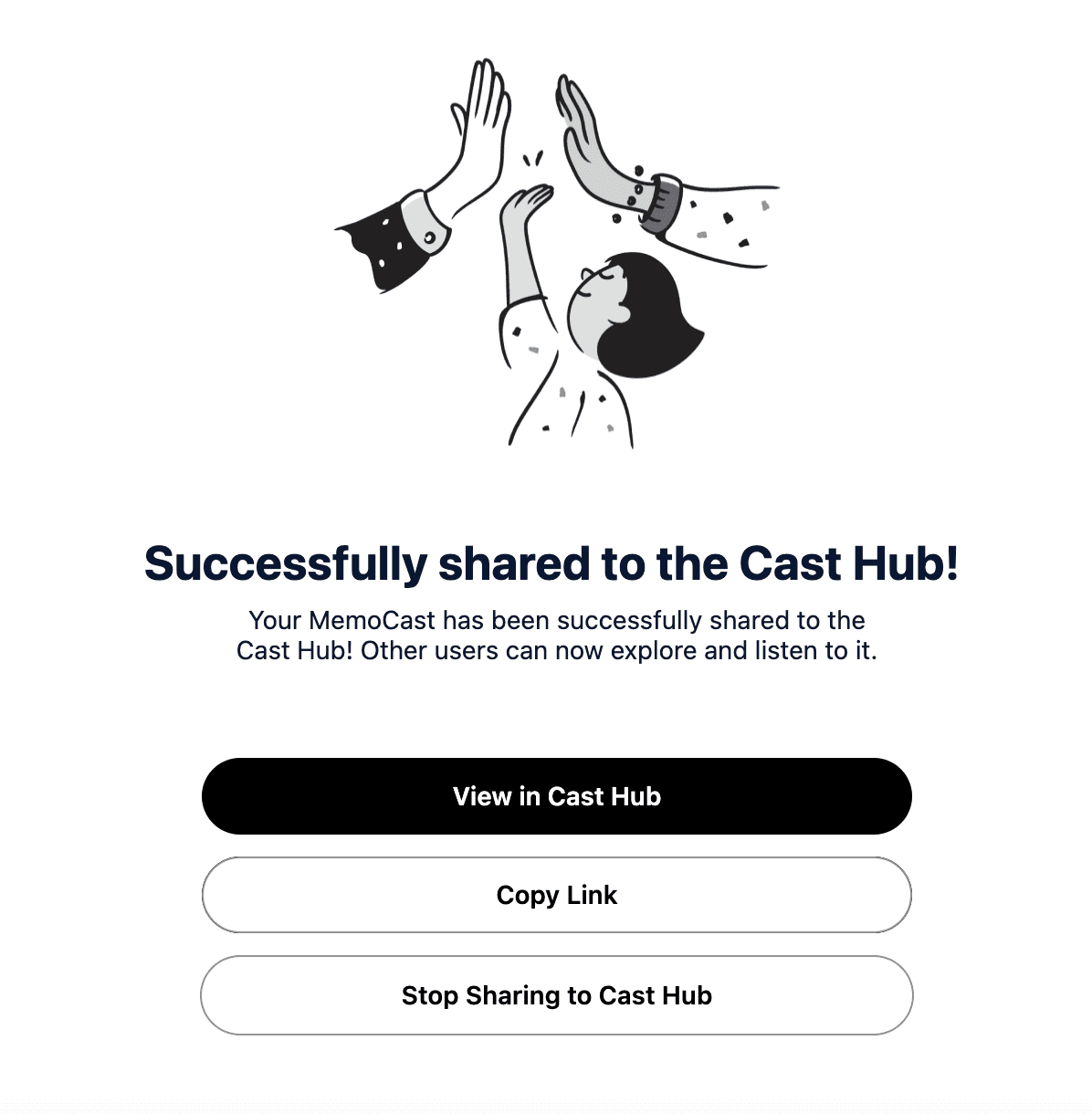
After sharing, you’ll see an option to publish your MemoCast to the Cast Hub — our open space where the entire MyMemo community can discover, explore, and listen to each other’s creations.
✨ Cast Hub is where your ideas meet the world. Whether it’s a powerful book summary, a niche tutorial, or a thought-provoking article recap — if it’s worth listening to, share it on Cast Hub.
Let your MemoCast become part of something bigger. 📡💬
🧩 To sum up!
| Option | Best For | What It Does |
|---|---|---|
| ✅ Daily MemoCast | Daily reviews, passive learning | Automatically generates a podcast each morning from the previous day’s content |
| 🛠 Manual MemoCast | Custom topics, focused review, sharing | Lets you pick specific memos and tailor the podcast to your needs |
Try to generate your first podcast now, let your knowledge move, let your ears move, learning has never been so easy! 🎧✨
If you have any questions, please email support@mymemo.ai.
Originally published at https://mymemo.ai/blog/getting-started-with-memocast/detail.